
Drag, resize, split, and regroup work quickly
Edit fast without losing structure.
The grid stays live and structured even when you are making heavy changes. No separate working copies. No spreadsheet workarounds.
Use lasso, scissors, and multi-select where grouped changes matter
Keep the live schedule structured while edits stay fast
Planner
My First Plan
U
My First Plan
Week
Development
Pre-Production
Production
Post Production
Delivery
Oct 2026
Nov 2026
Dec 2026
Jan 2027
Feb 2027
Mar 2027
Apr 2027
May 2027
Jun 2027
Jul 2027
Aug 2027
Sept 2027
Oct 2027
WK119 Oct
WK226 Oct
WK32 Nov
WK49 Nov
WK516 Nov
WK623 Nov
WK730 Nov
WK87 Dec
WK914 Dec
WK1021 Dec
WK1128 Dec
WK124 Jan
11 Jan
18 Jan
25 Jan
1 Feb
8 Feb
15 Feb
22 Feb
1 Mar
8 Mar
15 Mar
22 Mar
29 Mar
5 Apr
12 Apr
19 Apr
26 Apr
3 May
10 May
17 May
24 May
31 May
7 Jun
14 Jun
21 Jun
28 Jun
5 Jul
12 Jul
19 Jul
26 Jul
2 Aug
9 Aug
16 Aug
23 Aug
30 Aug
6 Sept
13 Sept
20 Sept
27 Sept
4 Oct
11 Oct
Why spreadsheets feel faster
The real comparison is speed: how quickly the team can make production changes without losing structure.
Moment
Spreadsheet habit
With Grid Editor
A block needs to move right now
People rely on ad hoc cells and manual fixes because it feels fastest in the moment.
Move the block directly in the grid without losing schedule structure.
A whole set of tasks slips together
Grouped changes become repetitive manual clean-up.
Use multi-select, ripple, or bulk actions to shift the affected work together.
You need to review the plan afterwards
The team keeps separate representations for editing and review.
Edit in grid, then scan the same schedule in another view when needed.
Edit directly in the grid
The controls are there when you need them. Hidden when you do not.
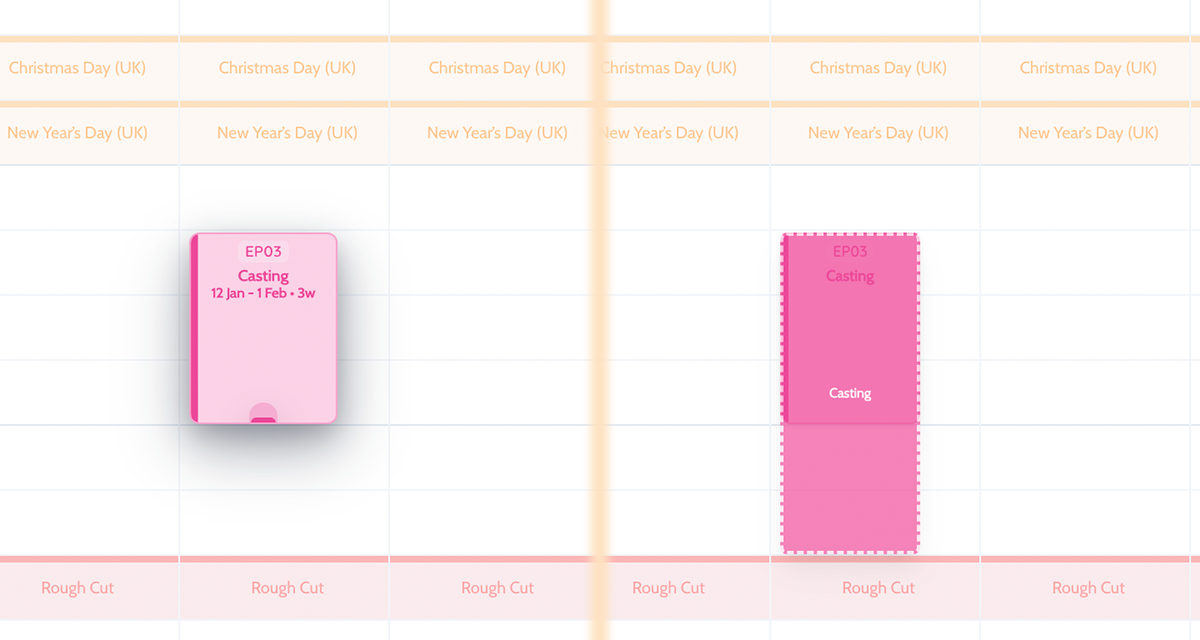
Direct block editing
Drag, resize, duplicate, and split schedule blocks in place.
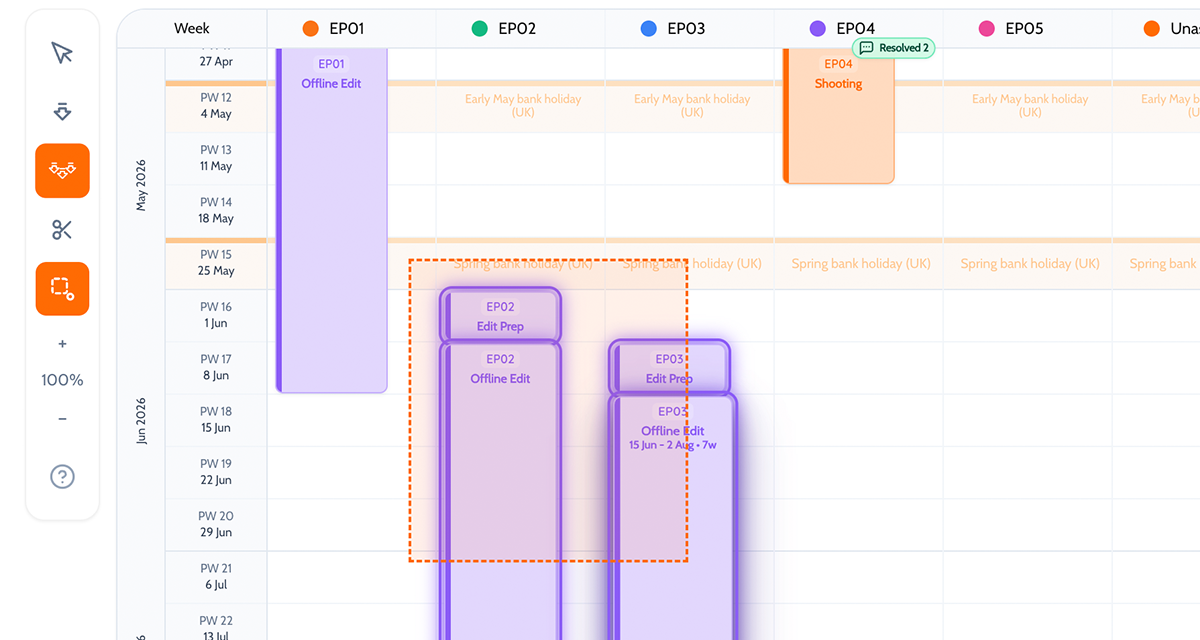
Grouped change tools
Use lasso, scissors, and multi-select when a replan affects a cluster of work.
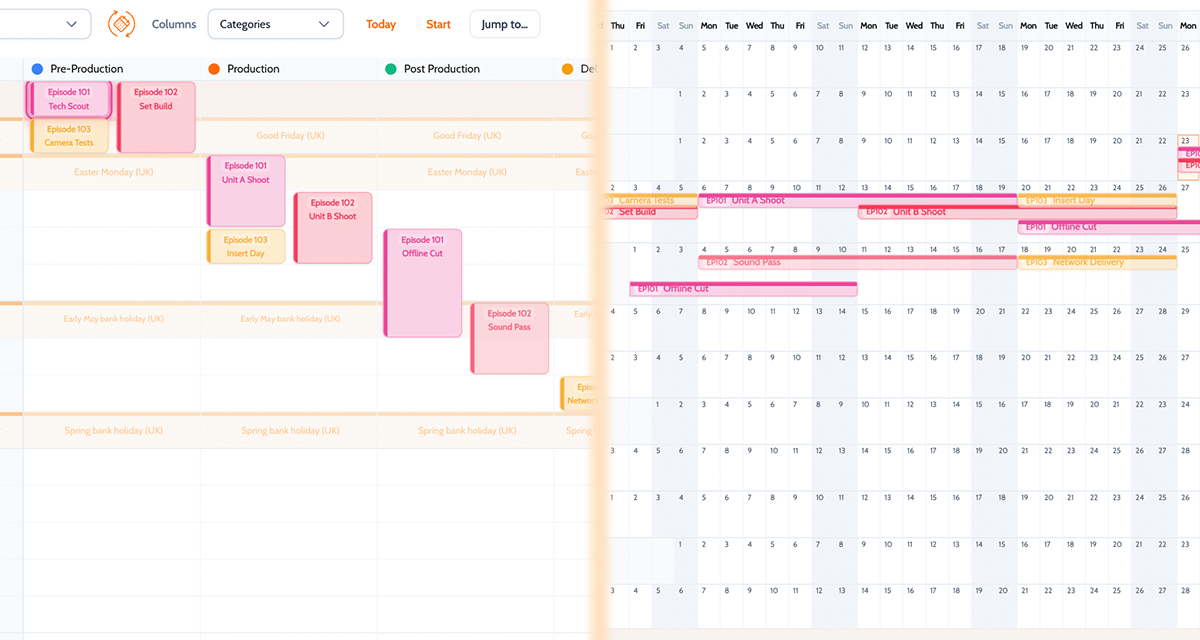
One plan across views
Editing speed does not require the team to split the plan into separate working copies.
How schedulers tend to use it
Three steps. The rhythm most schedulers fall into.
Open the part of the schedule that changed
You are always working from the live plan. Not a separate copy.
Make the edit directly in the grid
Move, split, resize, or regroup the work as the production changes.
Use bulk controls when the shift affects multiple items
Handle the grouped change without repairing the schedule line by line.
Why teams trust the Grid Editor
Fast editing still keeps the schedule structured.
Common edits feel direct
The interface should make the frequent production changes feel natural, not bureaucratic.
Grouped replans are not a hassle
Bulk tools matter because productions rarely change one isolated item at a time.
Fast editing does not break the plan
The grid stays live and structured even under heavy change.
Explore related workflow features
Grid editing works best alongside the rest of your workflow.
Questions about the Grid Editor
Straight answers on setup, fit, and workflow.
Can I edit multiple blocks at once?+
Yes. You will often need to shift a whole cluster of work. That is why the grouped-change tools are built in.
Is this only drag and drop?+
No. You can use keyboard shortcuts or your mouse. Whatever you prefer.
Does this force separate views for review?+
No. The same schedule can still be scanned in other views after editing.
Edit fast without falling back to spreadsheet workarounds.
One live schedule. Full editing speed. No workarounds required.